

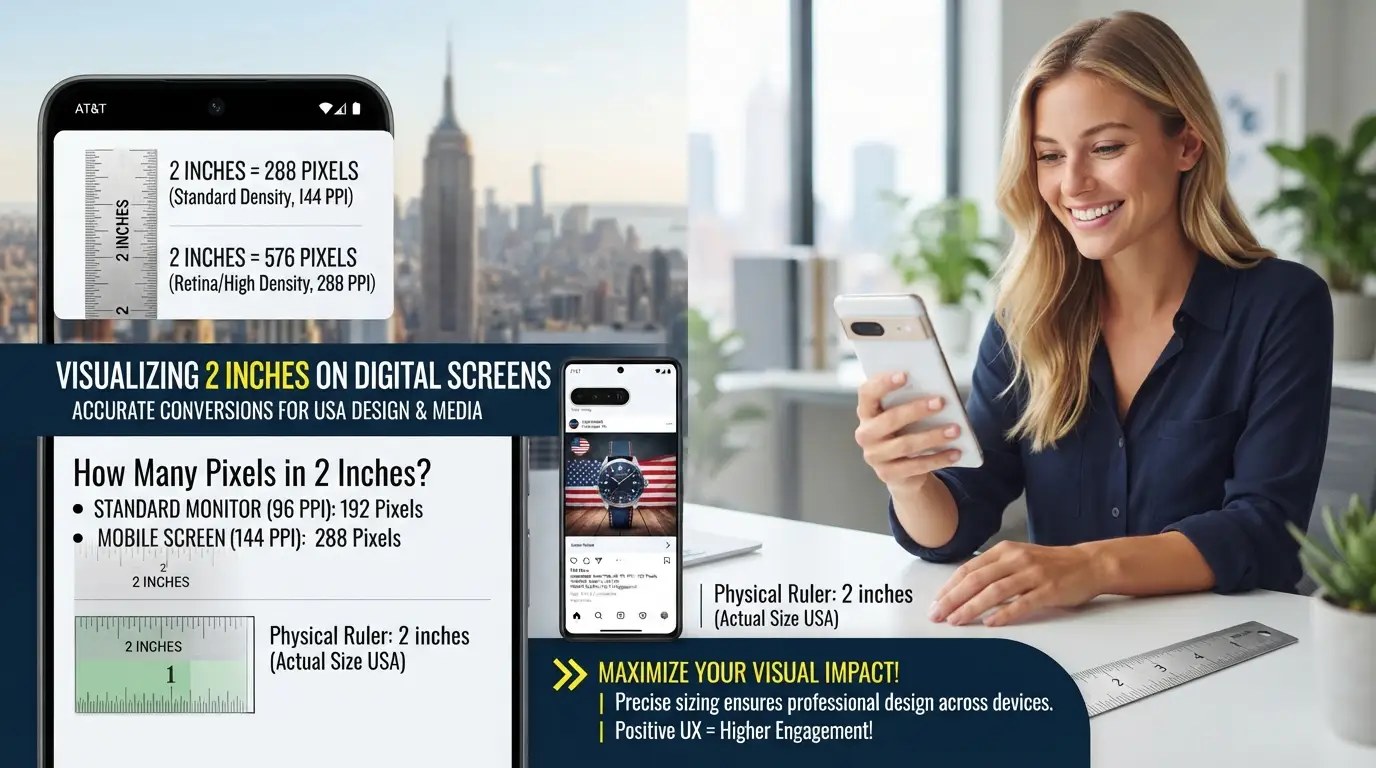
If you want to know how many pixels are in 2 inches, the answer depends on the image resolution (PPI or DPI).
At 96 PPI, 2 inches equals 192 pixels. At 300 DPI, 2 inches equals 600 pixels.
The difference matters when you create digital images, resize photos, prepare documents, or design something for printing. A 2-inch image does not always have the same pixel dimensions because the resolution setting changes the result.
This guide explains how to convert inches to pixels, shows common conversion values, and covers different image sizes used in Photoshop, printing, and graphic design.

How Many Pixels Is 2 Inches?
The pixel size of 2 inches depends on the resolution you choose.
Here are the results at common resolutions:
| Resolution | 2 Inches in Pixels |
| 72 PPI | 144 pixels |
| 96 PPI | 192 pixels |
| 120 PPI | 240 pixels |
| 150 PPI | 300 pixels |
| 200 PPI | 400 pixels |
| 300 PPI | 600 pixels |
| 600 PPI | 1,200 pixels |
For most standard screen-based calculations, 96 PPI is a useful reference. At this resolution, 2 inches equals 192 pixels.
For high-quality printing, 300 DPI is a common setting. At 300 DPI, a 2-inch measurement requires 600 pixels.
How to Convert 2 Inches to Pixels
You can convert inches to pixels with a simple multiplication formula.
Pixels = Inches × Resolution
To calculate the pixel size, multiply the measurement in inches by the selected PPI or DPI value.
For example, if you want to convert 2 inches to pixels at 96 PPI:
- Measurement: 2 inches
- Resolution: 96 PPI
- Calculation: 2 × 96
- Result: 192 pixels
Therefore, 2 inches equals 192 pixels at 96 PPI.
For a 300 DPI image:
- Measurement: 2 inches
- Resolution: 300 DPI
- Calculation: 2 × 300
- Result: 600 pixels
Therefore, 2 inches equals 600 pixels at 300 DPI.
The formula works for any measurement. You only need to change the number of inches and the resolution.
Inches to Pixels Conversion Chart
The following chart shows common inch measurements at 96 PPI and 300 DPI. It helps you compare standard digital dimensions with print-ready dimensions.
| Inches | Pixels at 96 PPI | Pixels at 300 DPI |
| 1 inch | 96 px | 300 px |
| 1.5 inches | 144 px | 450 px |
| 2 inches | 192 px | 600 px |
| 2.5 inches | 240 px | 750 px |
| 3 inches | 288 px | 900 px |
| 3.5 inches | 336 px | 1,050 px |
| 4 inches | 384 px | 1,200 px |
| 5 inches | 480 px | 1,500 px |
| 6 inches | 576 px | 1,800 px |
| 8 inches | 768 px | 2,400 px |
| 10 inches | 960 px | 3,000 px |
| 12 inches | 1,152 px | 3,600 px |
| 20 inches | 1,920 px | 6,000 px |
| 22 inches | 2,112 px | 6,600 px |
| 24 inches | 2,304 px | 7,200 px |
These values assume the stated resolution applies to each inch of the image.
How Many Pixels Are in 2 Inches at 300 DPI?
Two inches equals 600 pixels at 300 DPI.
This setting is useful for many printed materials because it provides 300 pixels for every inch of the final printed size.
For example:
- 1 inch at 300 DPI = 300 pixels
- 2 inches at 300 DPI = 600 pixels
- 3 inches at 300 DPI = 900 pixels
- 4 inches at 300 DPI = 1,200 pixels
- 5 inches at 300 DPI = 1,500 pixels
If you create a 2-inch-wide image for printing, a width of 600 pixels gives you the required pixel count at 300 DPI.
However, the physical print size also depends on the resolution information stored in the image and the settings used by the printing software.

What Is the Difference Between 96 PPI and 300 DPI?
PPI means pixels per inch. It describes how many image pixels fit into one inch.
DPI means dots per inch. It describes how many ink or printer dots a printer places within one inch.
People often use these terms interchangeably when discussing image resolution, but they describe different things.
For digital images, PPI helps determine the relationship between pixel dimensions and physical size. DPI usually refers to the printer’s output.
Here is a simple comparison:
| Feature | 96 PPI | 300 DPI |
| Common use | Screen-based sizing | High-quality printing |
| Pixels in 1 inch | 96 pixels | 300 pixels |
| Pixels in 2 inches | 192 pixels | 600 pixels |
| Pixels in 3 inches | 288 pixels | 900 pixels |
| Pixels in 4 inches | 384 pixels | 1,200 pixels |
| Typical purpose | Digital display | Print preparation |
A higher pixel count can provide more image detail at the same physical size, provided the original image contains enough information.
Common Image Sizes in Inches and Pixels
Many people search for specific image dimensions because they need to create business cards, photographs, social media graphics, or other designs.
The following examples show how different inch measurements translate into pixels.
3.5 x 2 Inches in Pixels
A 3.5 x 2-inch design is a common business card size.
At 96 PPI:
- Width: 3.5 × 96 = 336 pixels
- Height: 2 × 96 = 192 pixels
- Total dimensions: 336 × 192 pixels
At 300 DPI:
- Width: 3.5 × 300 = 1,050 pixels
- Height: 2 × 300 = 600 pixels
- Total dimensions: 1,050 × 600 pixels
For a print-ready business card, 1,050 × 600 pixels is a useful starting size at 300 DPI. You may need additional space for bleed, depending on the printer’s requirements.
2 x 2 Inches in Pixels
A 2 x 2-inch image has equal width and height.
| Resolution | Pixel Dimensions |
| 72 PPI | 144 × 144 px |
| 96 PPI | 192 × 192 px |
| 150 PPI | 300 × 300 px |
| 200 PPI | 400 × 400 px |
| 300 DPI | 600 × 600 px |
At 96 PPI, a 2 x 2-inch image measures 192 × 192 pixels. At 300 DPI, it measures 600 × 600 pixels.
1.5 x 2 Inches in Pixels
A 1.5 x 2-inch image has different width and height measurements.
At 96 PPI:
- Width: 1.5 × 96 = 144 pixels
- Height: 2 × 96 = 192 pixels
Final size: 144 × 192 pixels.
At 300 DPI:
- Width: 1.5 × 300 = 450 pixels
- Height: 2 × 300 = 600 pixels
Final size: 450 × 600 pixels.
This size can work for small portrait-oriented designs and printed images.
3 x 2 Inches in Pixels
A 3 x 2-inch image measures:
| Resolution | Pixel Dimensions |
| 72 PPI | 216 × 144 px |
| 96 PPI | 288 × 192 px |
| 150 PPI | 450 × 300 px |
| 300 DPI | 900 × 600 px |
At 96 PPI, the image measures 288 × 192 pixels. At 300 DPI, it measures 900 × 600 pixels.
4 x 2 Inches in Pixels
For a 4 x 2-inch image:
- At 72 PPI: 288 × 144 pixels
- At 96 PPI: 384 × 192 pixels
- At 150 PPI: 600 × 300 pixels
- At 300 DPI: 1,200 × 600 pixels
The 4 x 2-inch format works for horizontal graphics, small banners, and other rectangular designs.

2.5 x 2 Inches in Pixels
A 2.5 x 2-inch image has these dimensions:
| Resolution | Pixel Dimensions |
| 96 PPI | 240 × 192 px |
| 150 PPI | 375 × 300 px |
| 300 DPI | 750 × 600 px |
At 300 DPI, you need 750 pixels in width and 600 pixels in height.
5.5 x 2 Inches in Pixels
A 5.5 x 2-inch design measures:
- At 96 PPI: 528 × 192 pixels
- At 150 PPI: 825 × 300 pixels
- At 300 DPI: 1,650 × 600 pixels
This wider format can suit horizontal layouts and promotional graphics.
2.5 x 3.5 Inches in Pixels
A 2.5 x 3.5-inch design is a common portrait-oriented photo format.
| Resolution | Pixel Dimensions |
| 96 PPI | 240 × 336 px |
| 150 PPI | 375 × 525 px |
| 300 DPI | 750 × 1,050 px |
At 300 DPI, the image needs 750 pixels in width and 1,050 pixels in height.
2 x 3 Inches in Pixels
A 2 x 3-inch image has these dimensions:
- At 96 PPI: 192 × 288 pixels
- At 150 PPI: 300 × 450 pixels
- At 300 DPI: 600 × 900 pixels
The 2 x 3-inch format is useful for small portrait images and printed photographs.
2 x 6 Inches in Pixels
A 2 x 6-inch image has a tall, narrow shape.
| Resolution | Pixel Dimensions |
| 96 PPI | 192 × 576 px |
| 150 PPI | 300 × 900 px |
| 300 DPI | 600 × 1,800 px |
At 300 DPI, a 2 x 6-inch design measures 600 × 1,800 pixels.
24 x 36 Inches in Pixels
A 24 x 36-inch image is a large poster format.
- At 72 PPI: 1,728 × 2,592 pixels
- At 96 PPI: 2,304 × 3,456 pixels
- At 150 PPI: 3,600 × 5,400 pixels
- At 300 DPI: 7,200 × 10,800 pixels
Large-format printing does not always require 300 DPI. The appropriate resolution depends on the viewing distance, printer, and quality requirements.
How to Convert Inches to Pixels in Photoshop
Adobe Photoshop lets you adjust an image’s physical dimensions and resolution. You can use it to convert a 2-inch measurement into pixels.
Follow these steps:
- Open your image in Photoshop.
- Select Image from the top menu.
- Choose Image Size.
- Find the Width and Height fields.
- Change the measurement unit to Inches if necessary.
- Enter 2 in the required dimension field.
- Set the Resolution to 96 or 300, depending on your project.
- Check the resulting pixel dimensions.
- Click OK when the settings are correct.
For example, if you enter 2 inches and select 300 pixels per inch, Photoshop calculates a dimension of 600 pixels.
Important: Pay attention to the Resample option. When resampling is enabled, Photoshop can add or remove pixels to change the image’s pixel dimensions. When it is disabled, Photoshop changes the relationship between physical size and resolution without adding new image pixels.
If you need a 2-inch image for printing, check the printer’s resolution and document requirements before saving the final design.
How to Use an Inches to Pixels Converter
An inches to pixels converter makes these calculations easier. You do not need to multiply the numbers manually every time.
Most converters follow the same basic process:
- Enter the measurement in inches.
- Choose the resolution, such as 96 PPI or 300 DPI.
- Select the conversion option.
- Read the pixel result.
For example, enter 2 as the inch measurement and 300 as the resolution. The converter returns 600 pixels.
You can use the same process for 3 inches, 4 inches, 5 inches, 6 inches, or 10 inches.
A converter is especially useful when you work with several image dimensions or need to prepare files for different printing requirements.
How Many Pixels Are in 3, 4, 5, 6, and 10 Inches?
Here are quick answers for some commonly searched measurements.
| Measurement | At 96 PPI | At 300 DPI |
| 3 inches | 288 px | 900 px |
| 4 inches | 384 px | 1,200 px |
| 5 inches | 480 px | 1,500 px |
| 6 inches | 576 px | 1,800 px |
| 10 inches | 960 px | 3,000 px |
These calculations use the same formula:
Pixels = Inches × Resolution
For example, 10 inches at 300 DPI equals 10 × 300, or 3,000 pixels.
This formula also works for smaller measurements and larger designs.
What Resolution Should You Use for Digital Images and Printing?
The best resolution depends on where you plan to use your image.
For digital screens: Pixel dimensions matter more directly than a PPI value. A 192-pixel-wide image remains 192 pixels wide on a screen, regardless of the resolution metadata stored in the file.
For standard print projects: 300 DPI is a common target for high-quality images viewed at a normal distance. A 2-inch image at this resolution requires 600 pixels.
For large posters: You may be able to use a lower resolution because people usually view large prints from farther away. Follow the printer’s recommendations.
For photographs: Start with the highest-quality original image available. Increasing pixel dimensions through resampling does not automatically restore missing image detail.
Understanding these differences helps you choose the right dimensions without making an image unnecessarily large or reducing its quality.
Frequently Asked Questions
1. How many pixels is 2 inches?
Two inches equals 192 pixels at 96 PPI. At 150 PPI, it equals 300 pixels, while at 300 DPI, it equals 600 pixels. The exact result depends on the selected resolution.
2. How many pixels is 2 inches at 300 DPI?
Two inches equals 600 pixels at 300 DPI. Multiply 2 by 300 to get the result.
3. How many pixels is 2 inches at 96 PPI?
Two inches equals 192 pixels at 96 PPI. This calculation uses the standard 96-pixel-per-inch reference.
4. How do I convert inches to pixels?
Multiply the inch measurement by the selected resolution.
For example:
2 inches × 96 PPI = 192 pixels.
2 inches × 300 DPI = 600 pixels.
5. How many pixels is 3 inches?
Three inches equals 288 pixels at 96 PPI and 900 pixels at 300 DPI.
6. How many pixels is 4 inches?
Four inches equals 384 pixels at 96 PPI and 1,200 pixels at 300 DPI.
7. How many pixels is 5 inches?
Five inches equals 480 pixels at 96 PPI and 1,500 pixels at 300 DPI.
8. How many pixels is 6 inches?
Six inches equals 576 pixels at 96 PPI and 1,800 pixels at 300 DPI.
9. How many pixels is 10 inches?
Ten inches equals 960 pixels at 96 PPI and 3,000 pixels at 300 DPI.
10. Does changing DPI increase image quality?
Changing the DPI setting alone does not create additional image detail. If you increase the pixel dimensions through resampling, software may add pixels, but it cannot automatically recover details that the original image did not contain.
11. Are PPI and DPI the same?
No. PPI measures image pixels per inch, while DPI measures printer dots per inch. Both relate to resolution, but they describe different parts of the digital and printing process.
12. Can I use 192 pixels for a 2-inch printed image?
Yes, but at 96 PPI, 192 pixels produce a 2-inch image. This may be suitable for some basic uses, but it provides fewer pixels than a 600-pixel image prepared at 300 PPI for the same physical size.
Conclusion
Two inches equals 192 pixels at 96 PPI and 600 pixels at 300 DPI. The correct pixel size depends on your intended use and the resolution you select.
If you are creating graphics for digital screens, 96 PPI can serve as a useful conversion reference. For many high-quality print projects, 300 DPI is a common choice.
You can convert any inch measurement by multiplying it by the selected resolution. Whether you need 2 inches, 3 inches, 4 inches, 5 inches, 6 inches, or 10 inches in pixels, the same formula gives you the answer.
Always check your project’s actual size and resolution requirements before exporting or printing an image.

Grace Holloway writes easy conversion guides for millimeters, centimeters, inches and other everyday sizes. Each article gives the exact value, a quick rounded answer and a real-life example, so readers can get the number they need without any confusion.